Home Screen Ticket (How to Complete)
Table of Contents
Overview
Our blocks make it easy to customize the home screen of a community app. This means we are editing the screens we created in Bend when a community was first created. Below is a list of the different blocks we can add into a screen. You must paste the code below into the home screen of the customer and potentially make a few adjustments. Older customers will request sub-screens.
%20blocks%20example%20Copy-png.png)
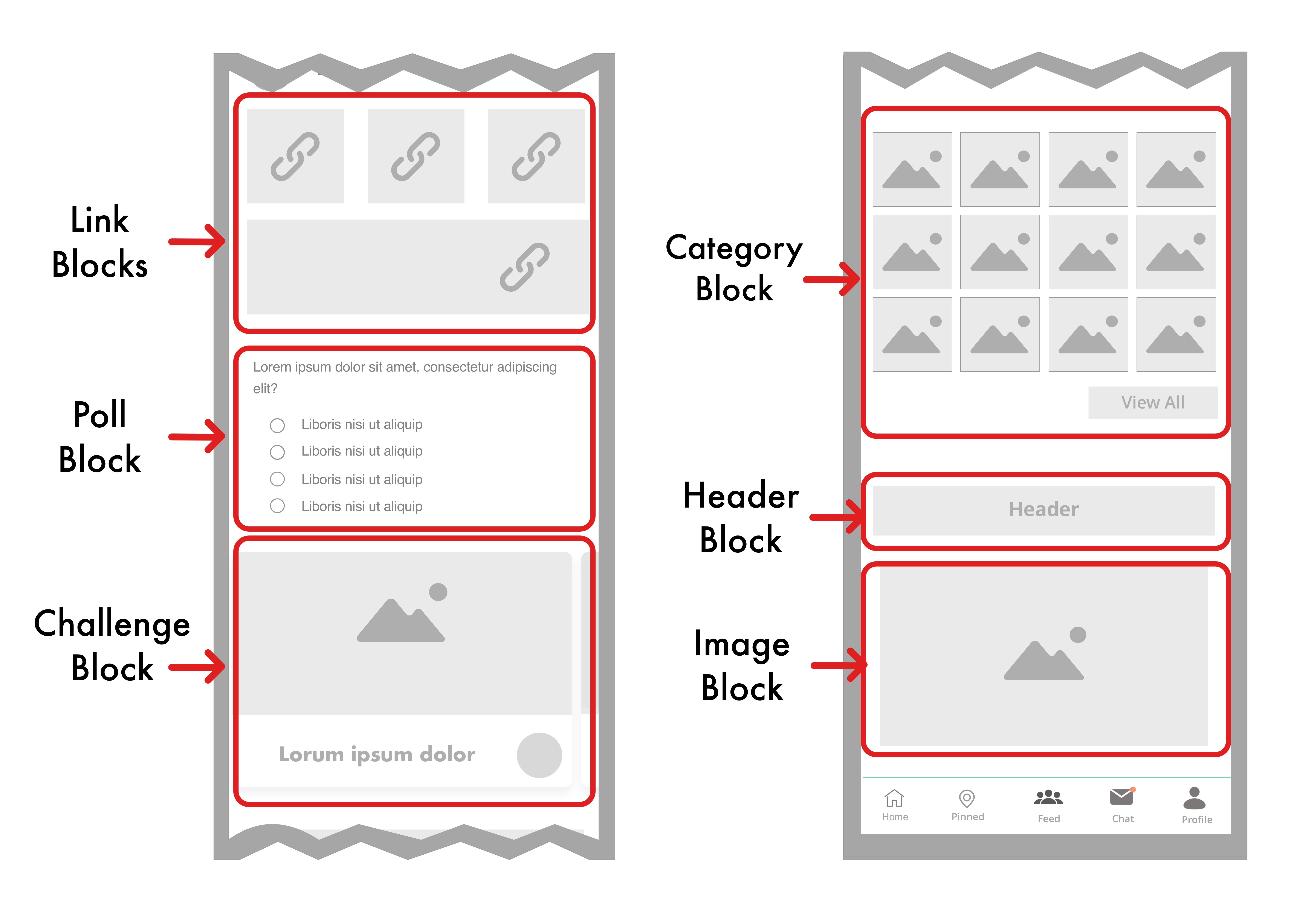
Daily Polls Block
Ask poll questions to hear quickly form participants. Please note, this feature will only appear for a user based on poll settings.
{ "type": "poll-question" },
Challenges Block
Display announcements and highlight single activities. Please note, this feature will only appear for a user based on challenge settings.
{ "type": "challenge-carousel" },
Goals Block
Display goals your specified users should achieve. Please note, this feature will only appear in the app based on goal settings.
{ "type": "goals" },
Leaderboard Block
Allow users to see their rank and quickly see the leaderboard.
{ "type": "user-summary" },
Link Block
Create a visual link to an internal location within the app or an external location outside the app. These can span the whole screen width or can be placed in columns.
If you need to design a image, header or link block I highly encourage you to use Canva JUST because then we can make those designs accessible to our customers, you can also use Sketch or your own design tool.
When you are adding in the designs to Bend, you want to make sure everything looks similar in terms of borders and so on.
Wrapping Link Blocks
Regardless, every link blocks must be "wrapped" using the items wrapper.
{
  "items":[
    { LINK BLOCK }
  ],
  "type": "square-buttons"
}
Adding Multiple Link Blocks to a Row
To display 2-6 link blocks in the same row you would just add them all to the same items wrapper.
{
  "items":[
    { LINK BLOCK 1 },
    { LINK BLOCK 2 }
  ],
  "type": "square-buttons"
},
Basic Link Block Components
title_disabled - Please add a title for the link block so you don't get lost in blocks
deeplink - This is where you would put the intended destination when a user clicks on the link block. If the destination is internally (so to another screen or piece of content within the app) you would just INSERT LINK DESTINATION. If you are looking to link externally you would change "deeplink" to "website" and then insert the URL into INSERT LINK DESTINATION.
backgroundImage - This is the image that you would like to display, typically this looks like a button but also could be text. The image must be a URL so once you get an image from a customer add it to this document. Right click the image and "Copy Image Address" and paste that into INSERTIMAGEURL
flex- You will have to play around with the flex based on the size of the link block you wish to insert. If you are having difficulty try going back to the image and adding space to the top, bottom, and sides instead.
{
  "items":[
    {
      "title_disabled": "INSERT TITLE HERE",
      "link":{
        "deeplink": "INSERT LINK DESTINATION"
      },
      "backgroundImage": "INSERTIMAGEURL",
      "flex": 8
    },
  ],
 "type": "square-buttons"
},
Internal & External Link Block Destinations
| Destination | Internal or External | Replace the link code with... |
| A specific category's screen | Internal |
"link":{
|
| Activity feed Screen | Internal |
"link":{
|
| Calendar Screen | Internal |
"link":{
|
| Map Screen | Internal |
"link":{
|
| Categories Screen | Internal |
"link":{
|
| A single activity's screen | Internal |
"link":{
|
| People Screen | Internal |
"link":{
|
| Sub Screen | Internal |
"link":{
|
| Website | External |
"link":{
|
| Starting an email | External |
"link":{
|
| Goals Screen |
"link":{
|
|
| A single goal |
"link":{
|
Headers & Images Blocks
These are very similar to Link Blocks only when you press on them they do not gray out. You can link to a website but it's not necessary. You will put the visual into the "source" section. You do not need a wrapper for images.
If you need to design a image, header or link block I highly encourage you to use Canva JUST because then we can make those designs accessible to our customers, you can also use Sketch or your own design tool.
When you are adding in the designs to Bend, you want to make sure everything looks similar in terms of borders and so on.
 {
  "maxHeight": 200,
  "disabled_link": {
  "website": " "
  },
  "source": "https://dl.airtable.com/.attachmentThumbnails/bc72d4c6a1c5bb02fac85061607715e3/51847678",
  "type": "image"
},
Spacer Block
If you want to add a little space inbetween two other block types you can just add an empty link or header block. Here is an example...
{
  "items": [
    {
    "title_disabled": "SPACE",
    "link": {
    "deeplink": ""
    },
  "margin": 2,
  "flex": 8
  ],
  "type": "square-buttons"
}
Survey Block
If you want ALL ACTIVE SURVEYS to appear on the home screen then use this code
{ "type": "surveys" },
Categories Block
This is to display a set amount of categories on the home screen. There can be as few or as many categories displayed or as many as desired as long as a number is specified. These categories can be random if desired as well.
{
  "type": "categories",
  "howMany": 12,
  "random": false
},
Built by MilkCrate Block
All customers (unless they are high paying) must have an about MilkCrate block at the bottom of their home screen.
{ "type": "about-milkcrate" }
Sub Screens
Old customers will request custom subscreens which are just an extension of the home screen into other unique screens that are unique to that customer.
- Login to Bend email: team@milkcrate.tech pw: !mpactTech
- Scroll down to screens section and hit new screen so we can create the home screen
- Remove the {} and then paste the following code into the new screen
{
    "cName": "NAME THIS FOR BEND SEARCHES",
    "tiles": [

    ],
     "slug": "customer-name-surveys",
    "teams": [
        "All Teams"
    ],
     "title": "ReplaceME",
    "type": "feed",
    "community": {
        "_type": "BendRef",
        "_id": "replaceme",
        "_collection": "community"
    }
}
- cName -- Replace the text within the quotes with the name of the organization any any other identifiers
- slug - Change the slug to have a unique name without spaces
- title -- Replace this with the name of the app
- community > _id -- replace this with the id of the community. This can be found by going into the Master Admin and clicking on the community's name and then the URL will have the ID


- Save and then login to the community depending on the community it will either be in it's own app or in the MilkCrate for Communities app.
Related Articles
Customer Meeting Recap Ticket (How to Complete)
Table of Contents Overview Step 1: Document the Meeting in Hubspot Step 2: Create Follow Up Tickets Step 3: Send a Follow-Up Email How to handle questions you don't know the answer to How to handle feature requests Overview What triggers the ticket? ...New Community/Customer Ticket (How to Complete)
Table of Contents Overview Step 1: Setting up the community Step 2: Adding Jamie Crate and the customer's team Step 3: Setting up the home screen Step 4: Sending a verification email with instructions for the next steps Overview Once sales as ...Design Tickets (How to complete)
Table of Contents What is a design ticket? Look Out for Rabbit Holes How to Handle Feature Ideas What is a design ticket? This is a request from a customer or an internal stakeholder to rethink how the customer's app functions and looks within the ...Home Screen Blocks
Home Screen Blocks Our blocks make it easy to customize the home screen of your app. Every customer app comes with a default home screen which can be changed at any time by following the steps below. Things to know Here are some things to know before ...Product Bug Ticket (How to Complete)
Table of Contents Overview Step 1: Understanding what's happening Step 2: Isolating and diagnosing the issue Step 3: Finding and implementing a fix Step 4: Celebrate! Overview In customer support, troubleshooting requires both technical knowledge ...